
Published Date: May 1, 2026 | Last Updated: May 12, 2026
About: This article covers how to connect an Identity Provider (IDP) and HRIS system as the first two integrations in a new Tello IAM environment. Connecting an IDP is the required first step in setup — it imports Users and their organizational data into Tello and makes everything that follows possible.
Why the IDP comes first
Before any User can be provisioned, monitored, or assigned a Role Template, Tello IAM needs to know who those Users are. Connecting an IDP is how that happens.
When an IDP integration is connected and synced, Tello automatically:
- Imports Users — every account in the connected directory is discovered and added to Tello.
- Pulls organizational data — department, job title, and other directory attributes are imported alongside each User record.
- Detects existing permissions — access already granted in the IDP surfaces in Tello, giving the Administrator a complete picture before any changes are made.
This imported data is the foundation for everything that follows — verifying User records, connecting additional integrations, and building Role Templates. Without it, none of those steps can be completed accurately.
Connecting an HR system
Connecting an HR system alongside the IDP enriches User records with additional organizational data — reporting structure, employment status, and other HR attributes — that may not be available from the directory alone. This step is recommended but not required to proceed. The HR system connection follows the same process as any other integration.
The Integrations page
All integration management takes place on the Integrations page, accessible from the left navigation. The page displays all connected integrations with their current status and last sync time.
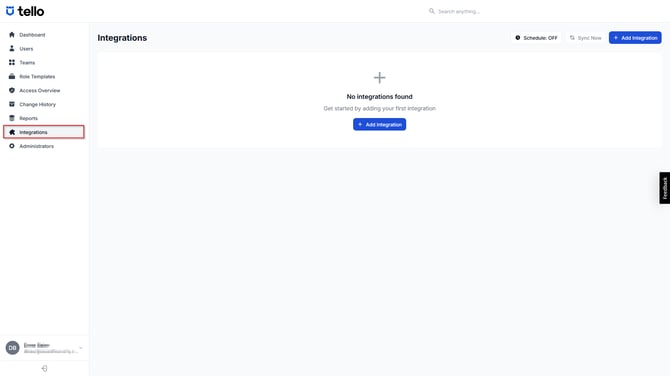
The following controls appear in the top right of the Integrations page:
| Control | Function |
|---|---|
| Schedule: OFF / ON | Configures the automatic sync schedule for all integrations. When enabled, the Administrator selects a sync frequency. When disabled, syncs run manually only. |
| Sync Now | Triggers an immediate sync across all connected integrations. |
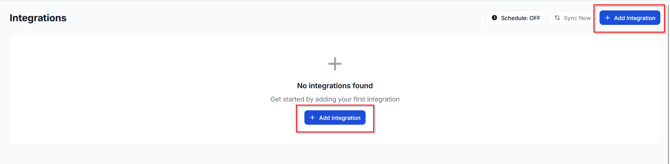
| + Add Integration | Opens the Add Integration catalog to connect a new integration. |
Connecting an IDP integration
The steps below use Microsoft Entra ID as the primary example. The connection flow — and the specific fields and authorization steps required — differs for each IDP. Before proceeding, refer to the connection guide for the relevant IDP in the Integrations knowledge base section.
⚠ Domain admin authorization required
Connecting an IDP requires an administrator account with organization-level authorization privileges in the target directory — for example, a Global Administrator in Microsoft Entra ID. If the Administrator does not hold this role, coordinate with the appropriate person before proceeding. The connection cannot be completed without it.
Before you begin
The IDP integrations will pull user attributes from systems like Entra, Active Directory, or other LDAP based directory applications. We recommend setting the Job Title and Department for all users in your IDP before adding the integration so that it syncs to Tello automatically.
Add the integration
- Navigate to Integrations in the left navigation
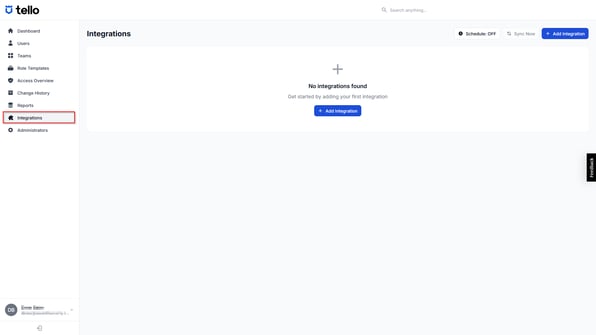
- Select + Add Integration.
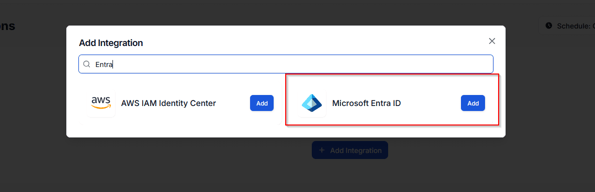
- Locate the IDP in the catalog. Use the Search integrations… field to filter by name if needed.
- Select Add next to the IDP.
Authorize the connection
The following steps are specific to Microsoft Entra ID. Steps differ for other IDPs — refer to the relevant connection guide in the Integrations knowledge base section.
- Enter the organization's Entra ID tenant domain in the Entra ID Tenant Domain field. The domain follows the format
contoso.onmicrosoft.comorcontoso.com.
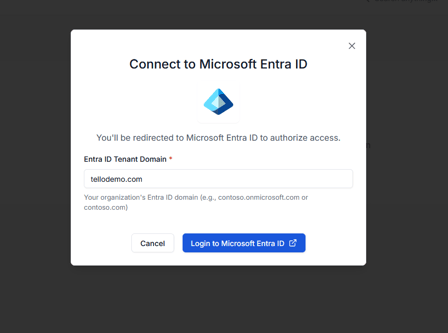
- Select Login to Microsoft Entra ID. Tello redirects to Microsoft for authorization.
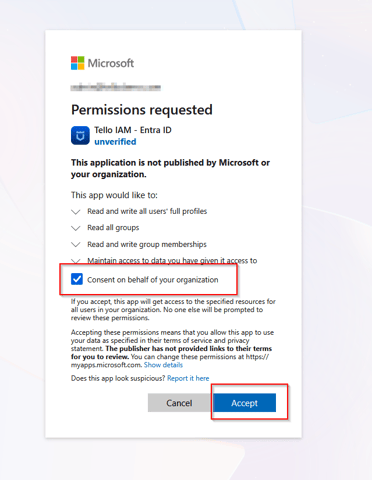
- Sign in with a Global Administrator account and grant the requested permissions on behalf of the organization.
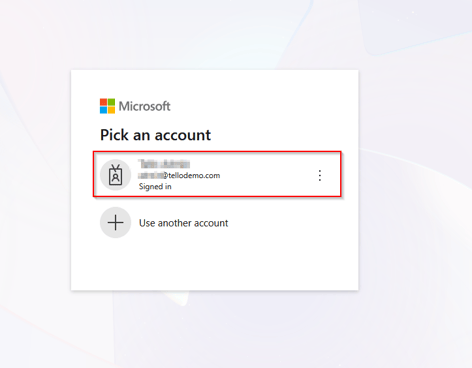
- Microsoft Entra ID will request permissions for the application. Select the option to consent on behalf of your organization and then select Accept.
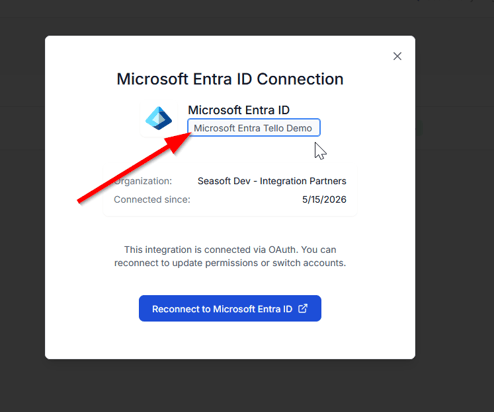
- After authorization is complete, Tello redirects back to the Integrations page and displays a Connection Established message. You can add a friendly to your integration by clicking on the pencil icon. When you are finished, click Done and Tello will begin syncing user data from your IDP.
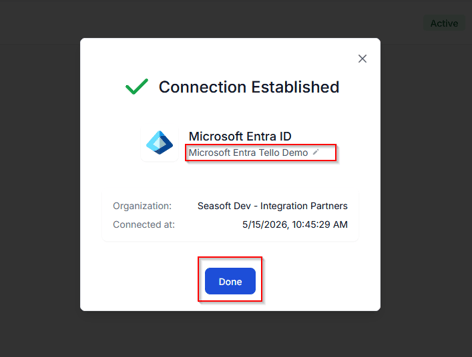
Assign a Friendly Name
Tello assigns a default name to each integration on connection if you do not modify it. A friendly name makes it easier to identify the integration in lists and reports, particularly when multiple instances of the same application are connected. If you did not name the integration on the initial sync, you can rename it at any time from the integrations page.
- Select the integration row on the Integrations page to open the IAM Connection panel.

- Select Configure.
- Edit the name in the name field.
- Select Save.
Multiple instances of the same integration
More than 1 instance of the same application can be connected — for example, a production and development environment for the same tool. Assign distinct friendly names to each instance to keep them identifiable. For example:
HubSpot – ProdandHubSpot – Dev.
Configuring the sync schedule
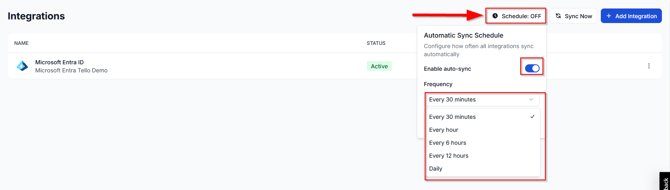
By default, the sync schedule is off. Tello supports automatic syncing on a configurable frequency so that User data and detected permissions stay current without requiring manual intervention.
- Select Schedule: OFF on the Integrations page.
- Toggle Enable auto-sync on.
- Select a sync frequency from the Frequency dropdown. Options are: Every 30 minutes, Every hour, Every 6 hours, Every 12 hours, and Daily.
- Close the schedule panel. The control updates to Schedule: ON.
Manual sync
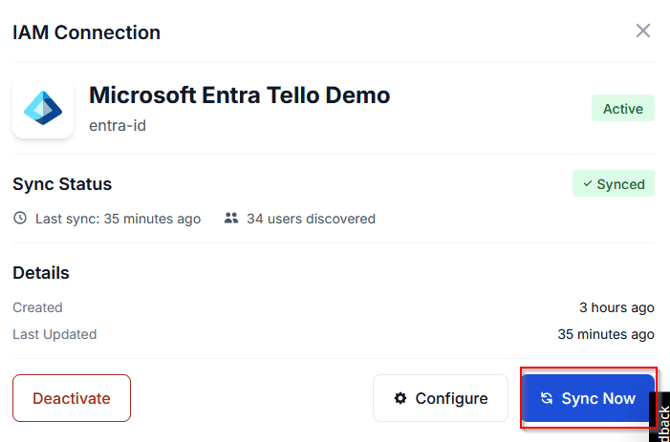
Select Sync Now at any time to trigger an immediate sync across all connected integrations, regardless of the schedule setting. To trigger a sync for a single integration only, open the IAM Connection panel for that integration and select Sync Now.
Drift detection
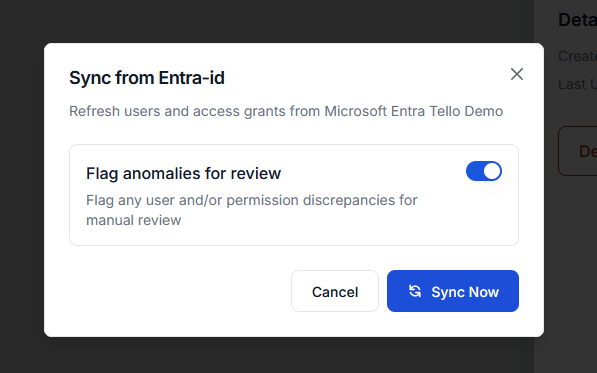
On the following screen, you will have the option to flag anomalies for review. This can be managed on a per-integration basis. This option will take the following action depending on whether you enable or disable it.
Enabled: Flag any user and/or permission discrepancies for manual review (default)
With this option enabled, Tello begins tracking access changes that occur outside the platform. When a permission changes in a connected system without a corresponding action in Tello, that change is flagged as drift.
Disabled: Ignore anomalies, and update Tello IAM to match actual permissions
With this option disabled, Tello will accept the permissions within the integration as they are and update its own permission values to match the source system. This can be used an an override or learning mode if you need Tello to quickly review/accept the permissions in the current system.
Drift detection is active as soon as integrations are connected unless you otherwise turn it off. Drift notifications are routed to Team managers — configuring Teams is covered in Getting Started Part 7.
Verifying a successful connection
-
After the IDP integration is connected and the first sync completes, verify that the connection is active and Users have been imported. Tello will tell you the last time your sync occurred.
-
Confirm the following:
-
Sync Status displays Synced.
-
Status displays Active
-
Navigate to Users in the left navigation and confirm that User records are present.
-
Users discovered shows the expected number of Users from the connected directory.
-
Connecting an HR system
Connecting an HR system follows the same process as connecting any other integration — locate it in the Add Integration catalog, select Add, and complete the authorization flow for that specific application.
Each HR system has its own connection requirements. Refer to the relevant connection guide in the Integrations knowledge base section before proceeding.
Next steps
This article is Part 2 of the Getting Started with Tello IAM series.
Next: Getting Started Part 3: Verifying your user data
Previous: Getting Started Part 1 - Platform Overview
Getting Started series
- Platform Overview
- Connecting your IDP and HR integrations (current)
- Verifying your user data
- Connecting additional integrations
- Planning your Role Template structure
- Configuring Role Templates
- Configuring Teams
- Monitoring access with Change History, Access Overview, and Reports
 Seasoft Security Solutions LLC | TelloIAM