
Published Date: May 1, 2026 | Last Updated: May 13, 2026
About: This article covers 3 things the Administrator does after connecting the IDP and HR system: verifying that User data synced correctly, learning how to manage User permissions directly in Tello IAM, and understanding how Tello detects when permissions change outside the platform.
Review the Users page
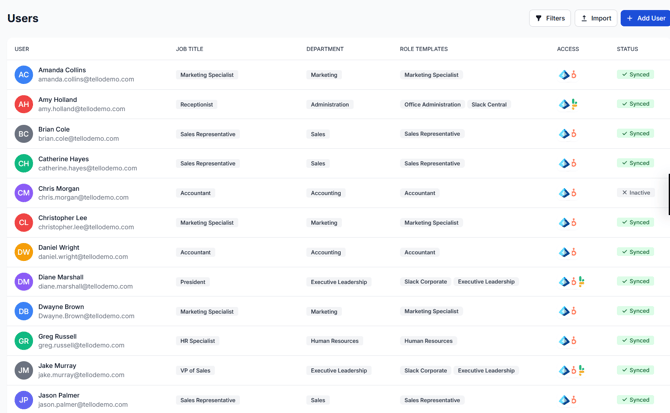
Navigate to Users in the left navigation. Each row in the list represents one User imported from the connected IDP. The following columns are displayed:
- User — the User's display name and email address, imported from the IDP.
- Job Title — the User's job title, imported from the HR system.
- Department — the organizational department the User belongs to, imported from the HR system.
- Role Templates — the Role Templates currently assigned to the User. If Role Templates have not yet been configured, this column may be empty or reflect templates assigned during initial setup.
- Access — icons representing the integrations the User is currently detected in.
- Status — the User's current sync state.
User status values
Each User record displays 1 of 3 status values:
Synced— the User record is complete and accurate. No action is required.Inactive— the User exists in the connected system but is not active. Inactive Users are displayed for visibility but are not provisioned.Issue— Tello IAM has detected a problem with this User's record that requires Administrator review. Select the User to investigate. This can be permission drift, errors in integrations, etc.
Verify the user count
Confirm that the number of Users displayed matches the expected headcount from the directory service. If the count is lower than expected, common causes include inactive or disabled accounts excluded by the IDP sync, sync filters applied during integration setup, or a sync that has not yet completed. If a sync is still in progress, navigate to Integrations, select Sync Now, and allow it to finish before rechecking and refreshing the browser.
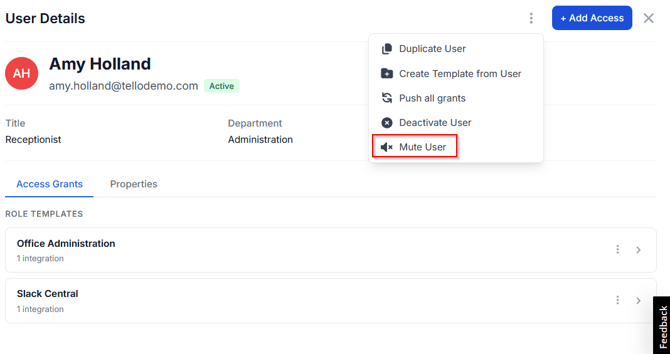
If user principals from the IDP are imported that the Administrator does not need to manage in Tello, select the User record and select Mute to hide it and suppress all related notifications. This is common for Shared Mailboxes, Distribution Lists, and other non-person objects that Entra ID treats as Users.
Review User details
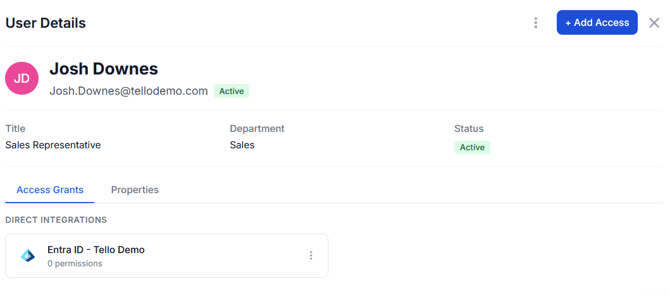
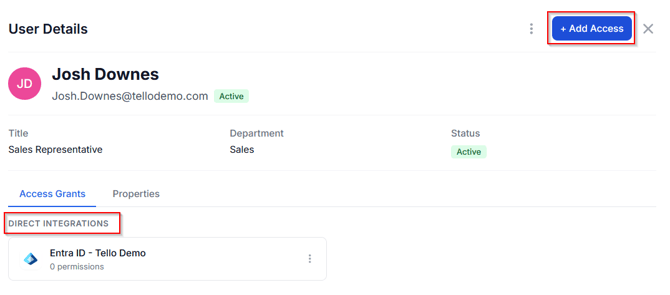
Select any User to open the User Details panel. The panel displays the User's name, email, title, department, and current status. The Access Grants tab shows all access the User currently holds, organized into 2 sections:
- Role Templates — access assigned to the User through a Role Template. Each entry shows the template name and the number of integrations it covers.
- Direct Integrations — access assigned directly to the User in a specific application, outside of any Role Template.
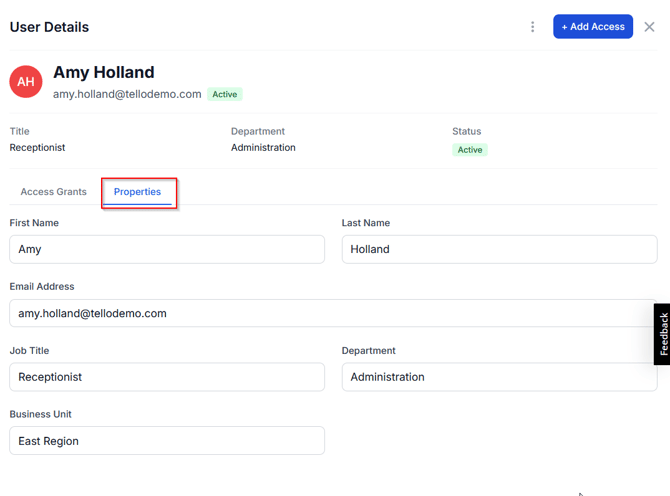
The Properties tab displays additional User attributes imported from the IDP and HR system.
Managing access directly
Access can be assigned to a User directly using + Add Access in the top right of the User Details panel. Direct access assignments appear under the Direct Integrations section of the Access Grants tab.
To add direct access:
- Select + Add Access from the User Details panel.
- In the Integrations tab, select the integration to assign access in. Connected integrations that are already assigned appear greyed out.
- In the Selected Access panel, configure the permissions for the selected integration. Permission options vary by application — for example, assigning a Microsoft 365 license requires selecting a license SKU such as
Microsoft 365 Business Basic.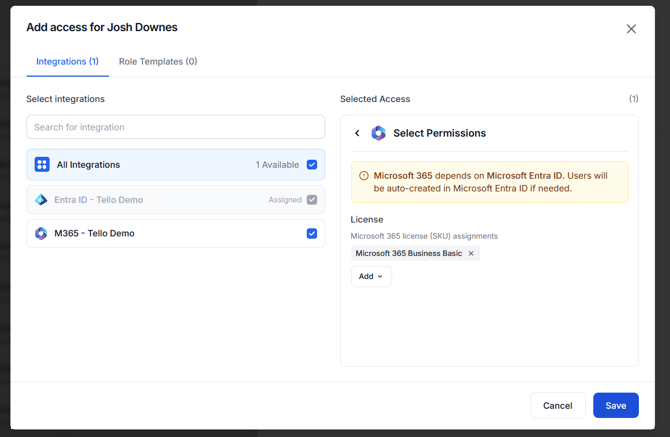
- Select Save. The integration appears under Direct Integrations in the User's Access Grants tab. They are automatically assigned the permission in the integration you modified.
Direct access is appropriate for one-off changes — assigning or adjusting access for a single User in a specific application without creating or modifying a Role Template. For changes that should apply to multiple Users, update the relevant Role Template instead. Role Templates are covered in Part 5 and Part 6.
Identifying and resolving issues
Any User displaying a status of Issue requires review. Select the User to open the User Details panel, then select the flagged integration under Direct Integrations to view the issue detail. An issue indicates 1 of 2 things: a permission drift event or a sync error.
Configuration drift

As covered in Part 2, Tello IAM flags permission changes that occur in a connected application outside of the platform as drift. When drift surfaces on a User record, the issue detail identifies the specific discrepancy — for example, Tello IAM did not expect Amy to be part of the SG-PowerBI-Finance group in Entra. It is not a part of her configured permissions and must have been added manually. This is a configuration drift anomaly.
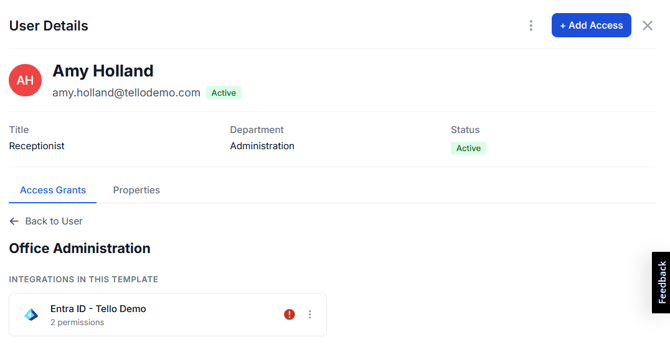
When drift is detected, the issue detail displays the specific discrepancy and a Resolve → button. Select Resolve → to open the resolution options.
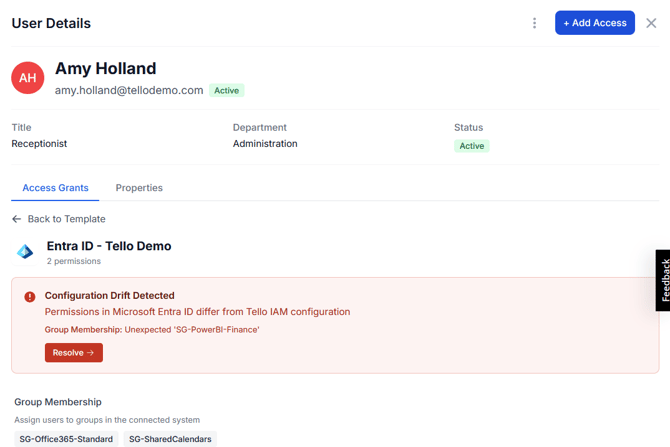
The Resolve Anomaly dialog presents 2 options:
- Use values from Tello IAM — updates the connected application to match what Tello IAM has configured. Use this option when the change in the source application was unauthorized or incorrect.
- Use values from [source application] — updates Tello IAM to match the connected application. Use this option when the change in the source application was intentional and should be reflected in Tello IAM.
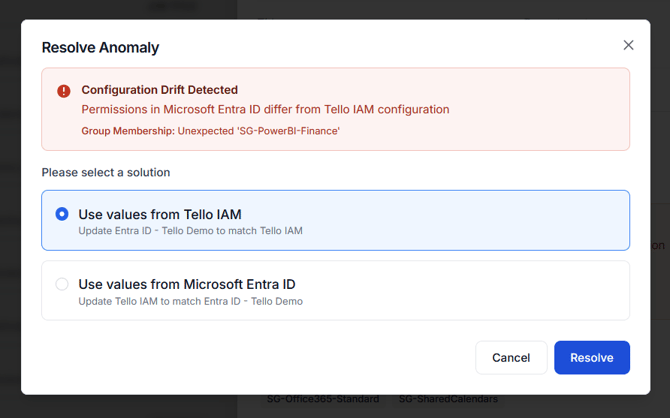
Select the appropriate option and select Resolve. Tello IAM applies the selected resolution and clears the issue from the User record.
Note: Tello IAM detects drift automatically across all connected integrations unless you manually disable sync. Drift events surface as anomalies on the User record and on the Dashboard. When Teams are configured in Part 7, drift notifications are routed to the assigned Team manager.
Sync errors
A sync error indicates that something went wrong during the data import for this User — for example, a field mismatch between the IDP and HR system, or a record that exists in 1 system but not the other. The issue detail describes the specific error. Resolve the underlying data discrepancy in the source system, then trigger a manual sync from the Integrations page by selecting Sync Now. The User's status updates once the sync completes successfully.
Confirmation
The Administrator is ready to proceed when all of the following are true:
- The User count matches the expected directory headcount
- All active User records display a status of
Synced - Identity data (name and email), org data (job title and department), and detected access are accurate across a reviewed sample
- Any
Issuerecords have been investigated and resolved
Next steps
This article is Part 3 of the Getting Started with Tello IAM series.
Next: Getting Started Part 4: Connecting Additional Integrations
Previous: Getting Started Part 2: Connecting your IDP and HR Integrations
Getting Started series
- Platform Overview
- Connecting your IDP and HR integrations
- Verifying your user data (current)
- Connecting additional integrations
- Planning your Role Template structure
- Configuring Role Templates
- Configuring Teams
- Monitoring access with Change History, Access Overview, and Reports
 Seasoft Security Solutions LLC | TelloIAM