
Published Date: May 1, 2026 | Last Updated: May 13, 2026
Overview
When a User leaves the organization or no longer requires access, the recommended approach is to deactivate them directly from their User record. Deactivating a User disables their access across all connected integrations that support deactivation and marks their record as Inactive in Tello IAM. Permission history is preserved.
There are three ways to handle offboarding depending on the organization's needs. Each is covered below.
Deactivating a User
This is the recommended approach for most offboarding scenarios. It disables the User across connected integrations and retains a full history of their permissions in Tello IAM.
- Navigate to Users and select the User.
- Select the … menu in the top right of the User record.
- Select Deactivate User.
- Confirm the action. Tello IAM disables the User across all connected integrations that support deactivation and updates the User's status to
Inactive.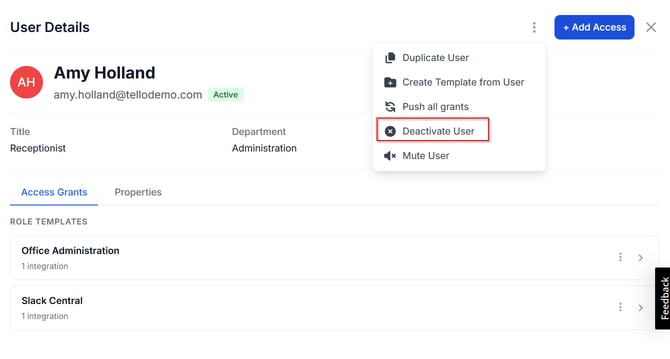
Integrations that do not support deactivation: If a connected integration does not support disabling a User, Tello IAM will prompt the Administrator with the option to delete the User from that system. Tello IAM will never delete a User from a connected application without an explicit Administrator confirmation.
Removing Role Templates before deactivating
An Administrator may choose to remove a User's Role Template assignments before deactivating. This is not required and should be done intentionally — removing Role Templates before deactivation clears the association between the User and those templates.
- Navigate to Users and select the User.
- In the Access Grants tab, locate each template listed under Role Templates.
- Select the remove option next to each template and confirm.
- Once Role Templates are removed, follow the deactivation steps above.
Muting a User
Muting a User hides their record from the Users page. This is useful for keeping the console clean after offboarding is complete. Mute can be applied independently or in addition to deactivation.
- Navigate to Users and select the User.
- Select the … menu in the top right of the User record.
- Select Mute User.
Related articles
- Managing Users — manage Role Templates, direct access, and User records
- Monitoring: Access Overview — verify current access state across all integrations
- Monitoring: Change History — confirm deprovisioning operations completed successfully
 Seasoft Security Solutions LLC | TelloIAM