
Published Date: April 15, 2026 | Last Updated: April 17, 2026
Notice: This guide is for creating new users. Existing users can be imported via integrations. See our integrations guide here: Configuring Integrations
1. After you log into the platform, navigate to your Dashboard
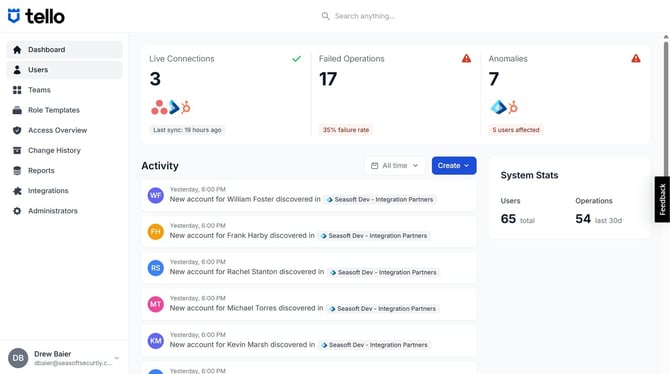
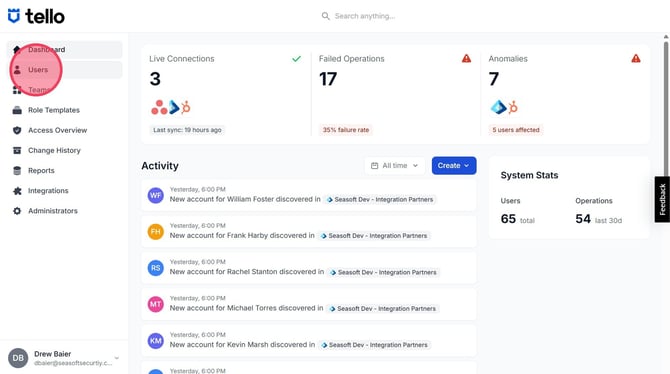
2. Click Users on the left-hand menu.
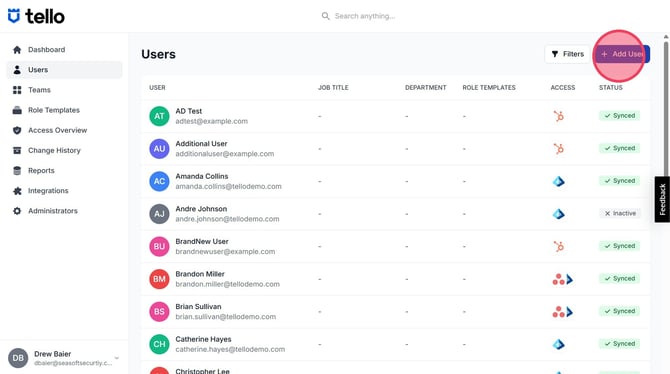
3. Click Add User in the top right-hand corner.
4. Enter a First Name, Last Name, and Email in the respective fields.
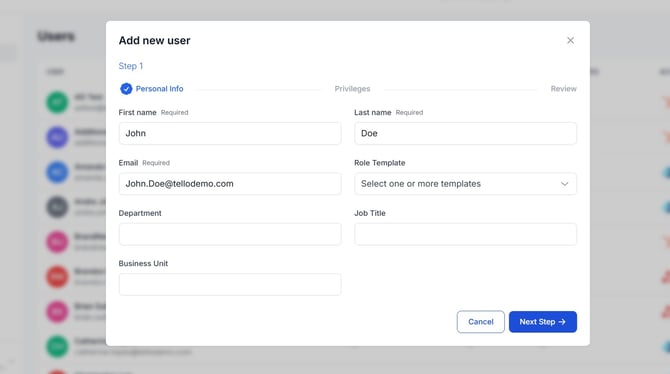
5. Click the Role Template dropdown and select the Role Template(s) to apply to the user.
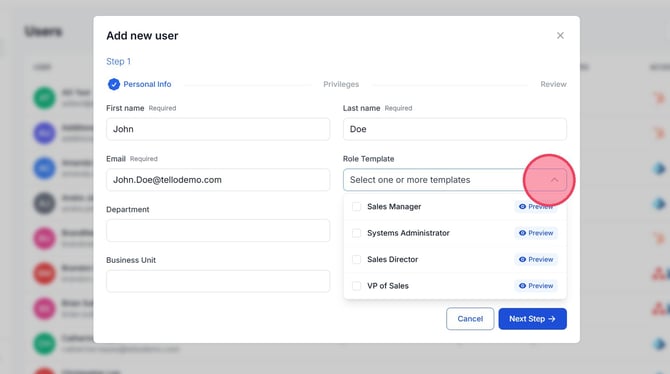
6. Enter the user's Department, Job Title, and Business Unit in the respective fields.
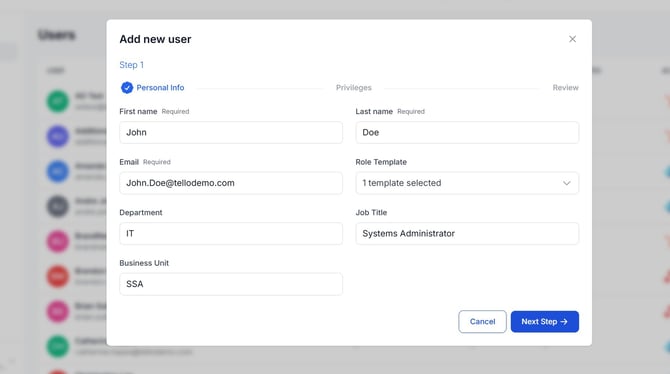
7. Verify the information is correct and click Next Step
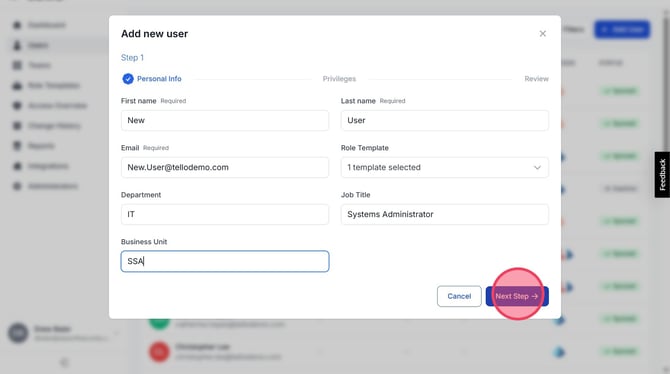
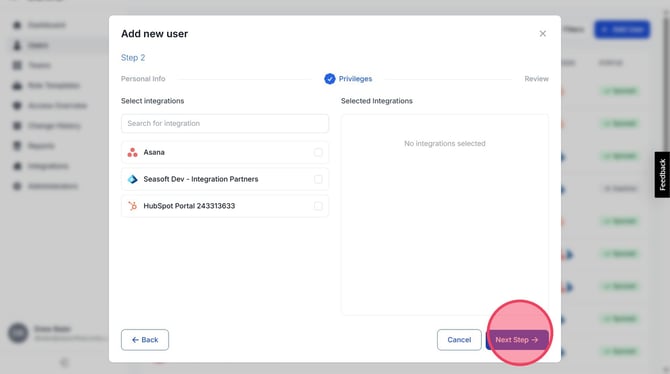
Tip: The next screen, Privileges, can be skipped unless you need to deviate permissions from a Role Template.
8. On the Privileges page, you only need to make changes if you want to deviate from your selected Role Template(s). If you need to make adjustments, you can click on each integration and adjust the permissions one by one. When finished, click Next Step.
9. On the Review page, you can verify the Role Template assigned all expected permissions by clicking the Preview button.
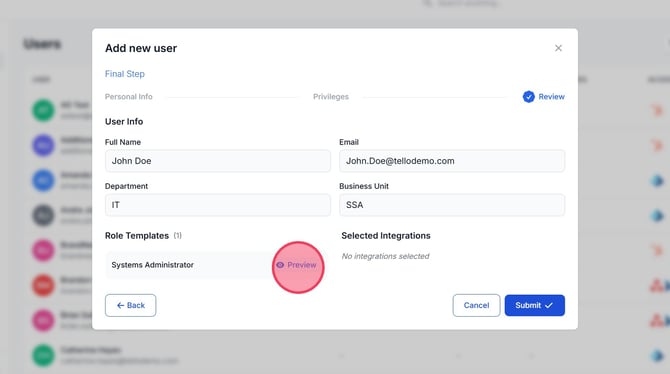
10. When previewing the template, you will see it's name in the top left-hand corner of the screen. The associated integrations and their permissions can be viewed below by clicking on each integration.
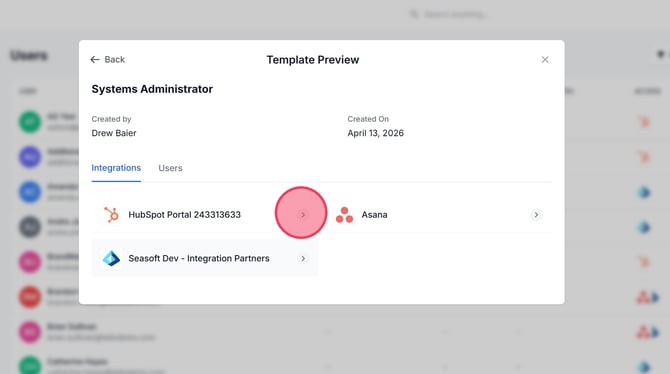
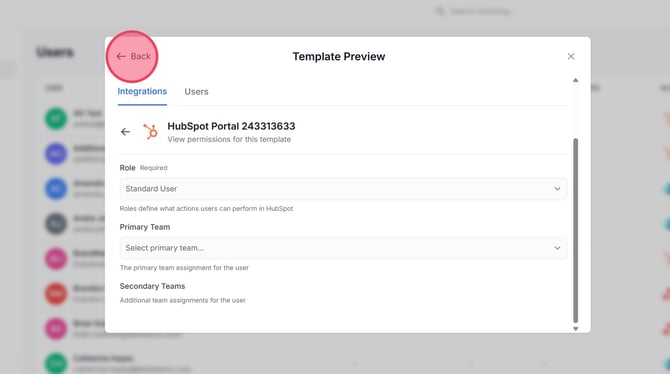
11. You can verify that each app has the correct permissions from the Role Template. This step is only for verification. If you are confident that your Role Template is setup correctly, you can proceed to finish the setup. Click the Back button when done.
12. After reviewing the permissions, click Submit
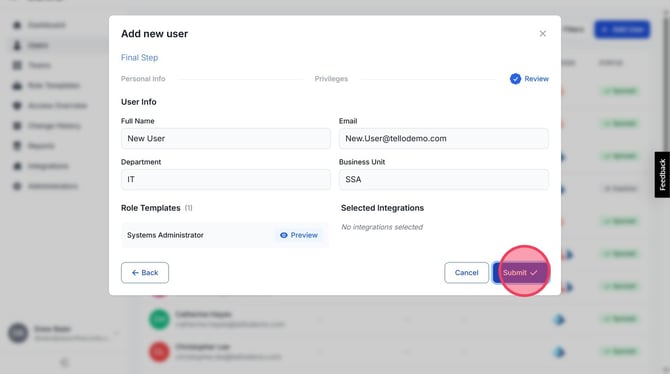
13. The user has now been created in Tello. In the bottom right-hand corner, you will see the Executing Operations message.
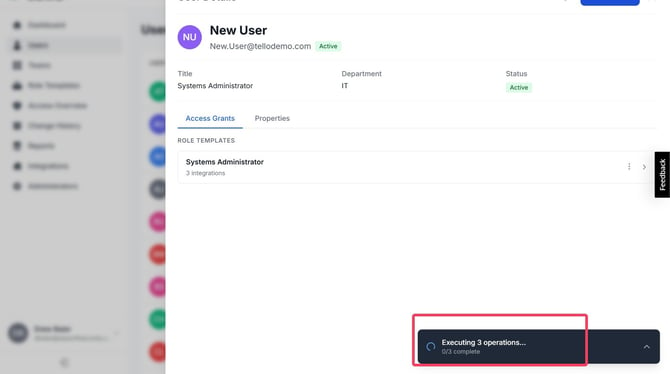
Caution: User accounts are always created in Tello IAM, but individual integration provisioning can fail independently. If a permission is missing or misconfigured, the user will exist in Tello but may not be provisioned in one or more integrations. Any failures will display an error with a description of the issue. See Understanding Errors for common error types and resolutions.
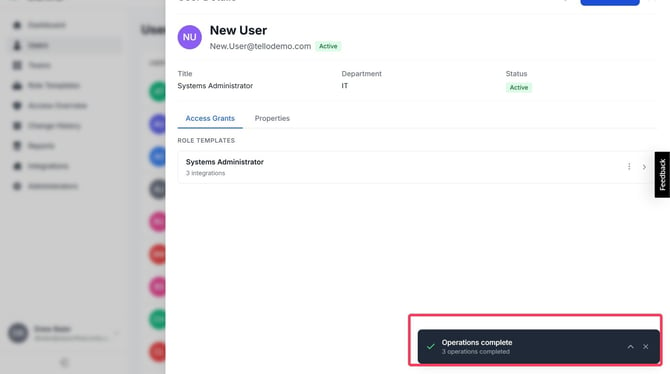
14. Once this completes, it will display the output. If you see the green check mark then all operations completed successfully.
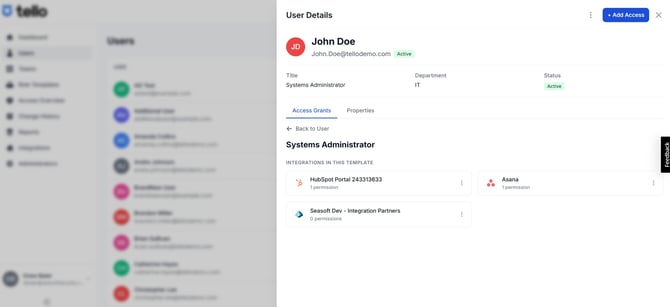
15. Search for your User in the User's list. You should now see that their account has been created in Tello as well as the integrations they have been provisioned for.
Notice: If you need help understanding or resolving an error you can submit a ticket to us by email at Support@SeasoftSecurity.com

Seasoft Security Solutions LLC | Tello IAM