
Published Date: April 16, 2026 | Last Updated: May 21, 2026
Overview
Integrations are the connections between Tello IAM and the external applications it manages. Every application Tello monitors, provisions, or deprovisions access in must first be connected as an integration. Once connected, Tello syncs user and permission data from that application on a configurable schedule, surfaces detected access on User records, and enforces Role Template assignments against it.
The Integrations page
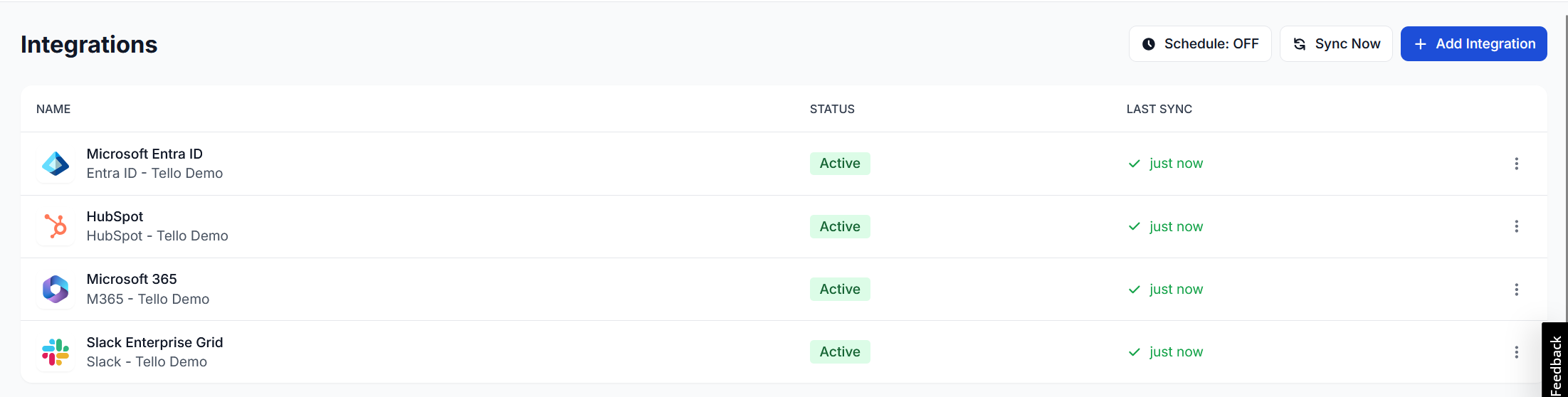
All integration management takes place on the Integrations page, accessible from the left navigation .The Integrations page displays all connected integrations with their current status and most recent sync timestamp.
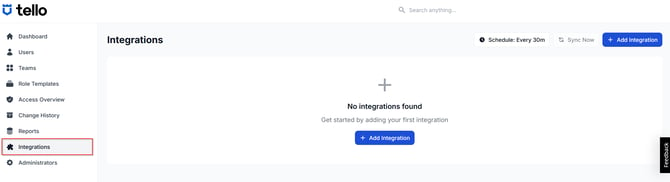
The following controls appear in the top right of the page:
| Control | Function |
|---|---|
| Schedule: OFF / ON | Configures the automatic sync schedule for all integrations. When enabled, the Administrator selects a sync frequency. When disabled, syncs run manually only. |
| Sync Now | Triggers an immediate sync across all connected integrations. |
| + Add Integration | Opens the integration catalog to connect a new integration. |
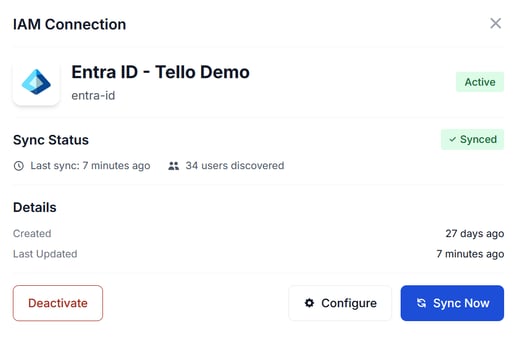
Select any integration row to open the IAM Connection panel, which provides connection details, configuration options, and a per-integration Sync Now control.
Integration types
Tello IAM supports 2 primary connection methods. The method required depends on the application being connected:
- OAuth — the Administrator authorizes Tello IAM by signing in to the target application and granting permissions. No API key is required. Microsoft Entra ID, Microsoft 365, and Google Workspace are examples of OAuth integrations.
- API key / credentials — the Administrator provides an API key or service account credentials generated in the target application. HubSpot and Slack are examples of API-based integrations.
The specific connection requirements for each application are documented in the individual integration guides in this section of the knowledge base.
Connecting an integration
Before connecting an integration, refer to the guide for that specific application. Each integration has its own authorization requirements, and some require credentials or configuration steps to be completed in the source application before the connection can be established in Tello IAM.
- Navigate to Integrations in the left navigation.
- Select + Add Integration.
- Locate the application in the catalog. Use the Search integrations… field to filter by name if needed.
- Select Add next to the application.
- Complete the authorization flow. The steps required vary by integration — refer to the relevant integration guide for details.
- After authorization is complete, Tello IAM begins an initial sync with the connected application. The integration appears on the Integrations page.
Assigning a friendly name
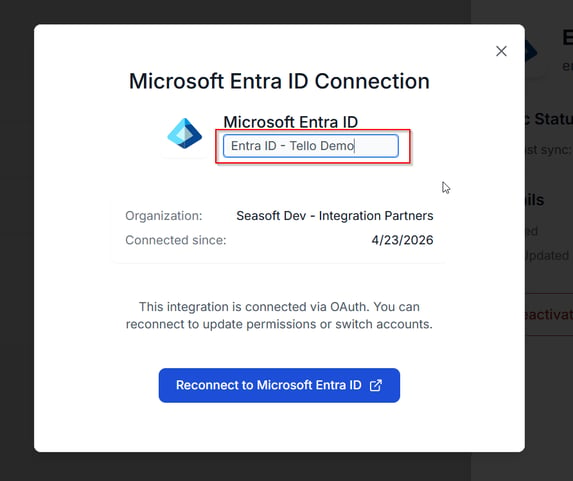
Tello IAM assigns a default name to each integration at connection. A friendly name makes the integration easier to identify in lists and reports, particularly when multiple instances of the same application are connected. The friendly name can be set during initial connection or updated at any time.
To update a friendly name after connection:
- Select the integration row on the Integrations page to open the IAM Connection panel.
- Select Configure.
- Edit the name in the name field.
- Select Save.
Multiple instances of the same integration: More than 1 instance of the same application can be connected — for example, a production and development environment for the same tool. Assign distinct friendly names to each instance to keep them identifiable. For example:
HubSpot – ProdandHubSpot – Dev.
Verifying a connection
After connecting an integration and allowing the initial sync to complete, confirm the following on the Integrations page:
- The integration displays a status of
Active - A sync timestamp is present and reflects the completed sync
- User records on the Users page display detected permissions for the newly connected application in the Access column
If the integration does not show as Active after the initial sync, select Sync Now to trigger a manual sync. If the status does not update, review the integration's authorization settings and consult the relevant integration guide.
Sync schedule
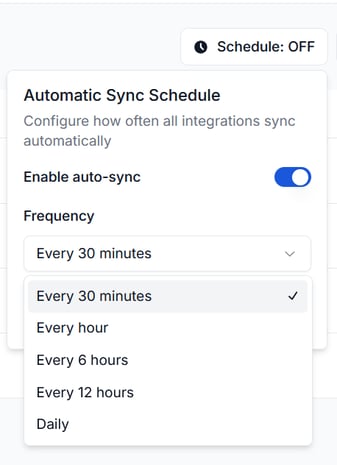
Tello IAM supports automatic syncing on a configurable frequency so that user data and detected permissions stay current without requiring manual intervention. By default, the sync schedule is off.
To configure the sync schedule:
- Select Schedule: OFF on the Integrations page.
- Toggle Enable auto-sync on.
- Select a sync frequency from the Frequency dropdown. Options are: Every 30 minutes, Every hour, Every 6 hours, Every 12 hours, and Daily.
- Close the schedule panel. The control updates to Schedule: ON.
The sync schedule applies to all connected integrations. Individual integrations cannot be set to different frequencies.
Manual sync: Select Sync Now at any time to trigger an immediate sync across all connected integrations, regardless of the schedule setting. To sync a single integration only, open the IAM Connection panel for that integration and select Sync Now.
Drift detection
Drift detection determines how Tello IAM handles permission changes that occur in a connected application outside of the platform. It is configured per integration when setting up or editing a sync.
Drift detection has 2 settings:
- Enabled (default) — Tello IAM tracks access changes that occur in the connected application without a corresponding action in the platform. When a permission changes outside of Tello, that change is flagged as drift and surfaced for Administrator review. The Administrator resolves each drift event by choosing whether to enforce the Tello IAM configuration or accept the change from the source application.
- Disabled — Tello IAM accepts the permissions in the connected application as authoritative and updates its own records to match. This mode is useful when onboarding an integration against an existing permission state that the Administrator wants Tello to adopt without flagging everything as drift.
Drift notifications are routed to the Team manager assigned to each affected User. Teams are configured separately — see the Configuring Teams article for details.
Resolving drift
When drift is detected on a User record, the User's status updates to Issue. To resolve:
- Navigate to Users and select the affected User.
- In the Access Grants tab, select the flagged integration under Direct Integrations to view the issue detail.
- Select Resolve → to open the resolution options.
- Choose one of the following:
- Use values from Tello IAM — updates the connected application to match the Tello IAM configuration. Use when the change in the source application was unauthorized or incorrect.
- Use values from [source application] — updates Tello IAM to match the connected application. Use when the change was intentional and should be reflected in Tello IAM.
- Select Resolve. Tello IAM applies the selected resolution and clears the issue from the User record.
Managing existing integrations
Once an integration is connected, it can be configured or removed at any time from the Integrations page.
To open the management panel for an integration, select the integration row. From the IAM Connection panel the Administrator can:
- View connection status and sync history
- Trigger a manual sync for that integration only
- Update the friendly name via Configure
- Update drift detection settings
- Remove the integration
Important: Removing an integration disconnects Tello IAM from that application. Detected permissions sourced from that integration are removed from User records, and any Role Templates that include it will no longer provision or deprovision access in that application. Review Role Template configurations before removing an integration that is actively in use.
 Seasoft Security Solutions LLC | Tello IAM