
Published Date: May 1, 2026 | Last Updated: May 13, 2026
About: This article covers the 3 monitoring tools available in Tello IAM: Change History, Access Overview, and Reports. The Administrator will learn how to review the Change History log, audit current permissions in Access Overview, and export Reports. This is the final article in the Getting Started series.
Overview
Tello IAM provides 3 tools for monitoring access across connected applications: Change History, Access Overview, and Reports. Each serves a distinct purpose. Change History is the operational log — a timestamped record of every action Tello has taken. Access Overview is the current state — a live matrix of who has access to what, right now. Reports are the export layer — structured data the Administrator can pull for audits, reviews, or external reporting.
Together, these 3 tools give the Administrator full visibility into what Tello IAM has done, what the current state of access is, and the ability to produce evidence of both on demand.
Change History
Navigate to Change History in the left navigation. The page displays a timestamped log of every operation Tello IAM has executed across all connected integrations. Select any event to drill into the details.
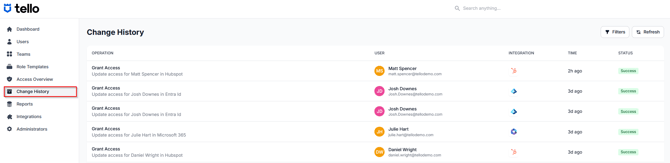
Each entry in the log records:
- Operation type — the action performed (for example,
Create User,Enable User,Disable User, orGrant Access) - User — the User the operation was performed on
- Integration — the application the operation was executed in
- Time — the timestamp of the operation
- Status — whether the operation succeeded or failed
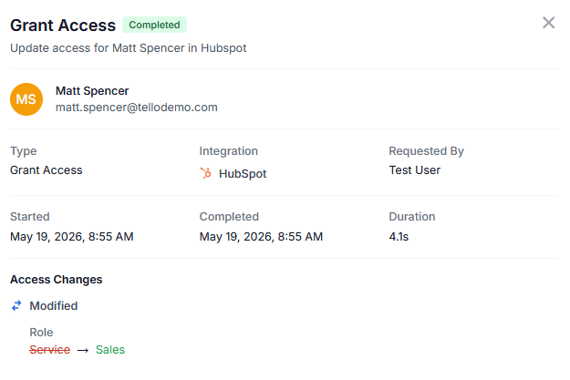
Using Change History
Change History serves 3 primary functions:
- Investigating failed operations — filter by status to surface operations that did not complete successfully. Select an entry to review the failure detail and determine whether the issue requires action (for example, reauthorizing an integration or correcting a User record).
- Verifying provisioning — after assigning a Role Template or taking a manual provisioning action, use Change History to confirm the corresponding operations executed and completed successfully.
- Maintaining an audit trail — Change History is the authoritative record of everything Tello IAM has done. It is available at any time and is not cleared between sessions.
Select Filters to narrow the log by User, integration, time range, or operation status. Select Refresh to load the most recent entries.
Access Overview
Navigate to Access Overview in the left navigation. The page displays a matrix of all Users and their current access across every connected integration. Each row represents 1 User. Each column represents 1 integration. The cell at the intersection of a row and column indicates whether the User has active access in that application.
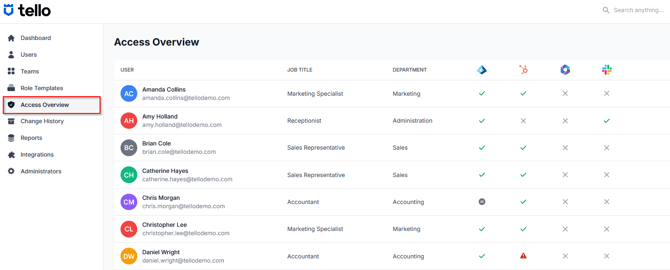
Status indicators within each cell reflect the current provisioning state. A warning indicator in a cell signals an issue with that User's access in the corresponding integration — select the cell to review the detail.
Using Access Overview
Access Overview is the primary tool for User Access Reviews (UARs) — periodic audits in which the Administrator confirms that every User holds only the access they are authorized to have. The matrix format makes it straightforward to scan for unexpected access, identify Users who may need updates, and confirm that Role Template assignments have produced the intended provisioning state.
Select Filters to narrow the matrix by department, integration, or status. Provisioning changes are not made directly in Access Overview — to update a User's access, navigate to the Users page and modify the User's Role Template assignments.
Reports
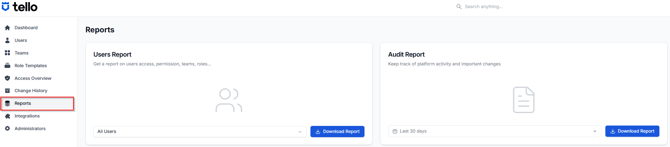
Navigate to Reports in the left navigation. The page provides 2 exportable reports:
- Users Report — a CSV containing User access data, including assigned Role Templates, Teams, and permissions across connected integrations. The report can be filtered to a specific User or exported for all Users.
- Audit Report — a CSV of platform activity and significant access changes over a selected time range. The default range is the last 30 days.
To export a report, select Download Report under the relevant report type. The file downloads as a CSV and can be opened in any spreadsheet application.
When to use Reports
The Users Report is the primary export for access reviews, compliance documentation, and HR or security audits. It provides a point-in-time record of what every User is provisioned for.
The Audit Report is used when the Administrator needs a record of what changed over a period — for example, following an offboarding event, a security incident, or a scheduled compliance review.
Ongoing monitoring
With Change History, Access Overview, and Reports in place, the Administrator has full visibility into access across every connected application. The recommended monitoring cadence is:
- Review the Dashboard regularly for failed operations and anomalies requiring attention
- Use Change History to investigate any failed operations or unexpected activity
- Run Access Overview as part of scheduled User Access Reviews
- Export Reports as required for compliance, audits, or stakeholder reviews
Tello IAM monitors access continuously across all connected integrations. Drift events — permission changes that occur outside of Tello in a connected application — are flagged automatically and routed to the relevant Team manager. No manual polling is required.
You have completed the Getting Started with Tello IAM Series. Review content from any section here in our Knowledge Base at any time.
This article is Part 8 of the Getting Started with Tello IAM series.
Previous: Getting Started Part 7: Configuring teams
Getting Started series
- Platform Overview
- Connecting your IDP and HR integrations
- Verifying your user data
- Connecting additional integrations
- Planning your Role Template structure
- Configuring Role Templates
- Configuring Teams
- Monitoring access with Change History, Access Overview, and Reports (current)
 Seasoft Security Solutions LLC | TelloIAM