
Published Date: May 1, 2026 | Last Updated: May 13, 2026
About: This article covers creating teams in Tello IAM, assigning Users to teams, and configuring manager assignments. By the end, the Administrator will have teams active and drift notifications routing to the correct managers.
What Teams do
Teams in Tello IAM serve a single purpose: notification routing. When a User's access changes — whether through a Role Template assignment, a manual provisioning action, or a drift event detected in a connected application — Tello IAM notifies the Team manager assigned to that User by email.
Teams do not control access. Assigning a User to a Team does not grant or restrict any permissions. Access is managed exclusively through Role Templates. Teams exist to keep the right people informed when access changes occur.
Every User should be assigned to a Team before monitoring begins. Without a Team assignment, access change notifications for that User have no destination.
Plan your Team structure
Teams typically map to organizational structure — a Team per department, business unit, or reporting line is the most common approach. The key decision is who receives notifications for which Users. For each Team the Administrator creates, identify:
- Team name — a descriptive label, typically the department or group name
- Manager — the person who receives email notifications when a User in this Team experiences an access change. This is typically the department lead or direct manager.
- Members — the Users whose access change notifications route to this Team's manager
Create a Team
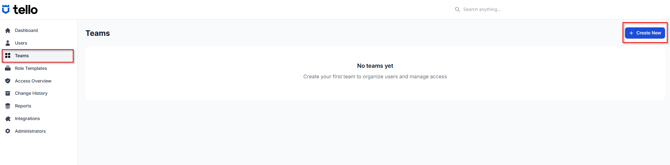
- Navigate to Teams in the left navigation.
- Select + Create New.
- Enter a name in the Team Name field.
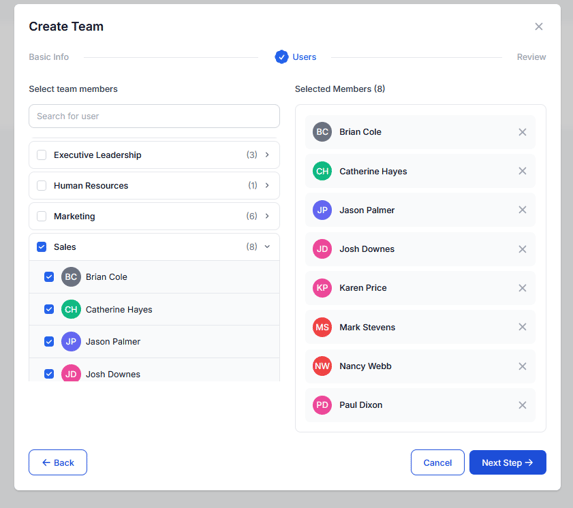
- Select the Users who should be a member of this team. These are the Users whose permissions will be monitored for change. If you have setup the Department attribute on users, you can select an entire Department to add:
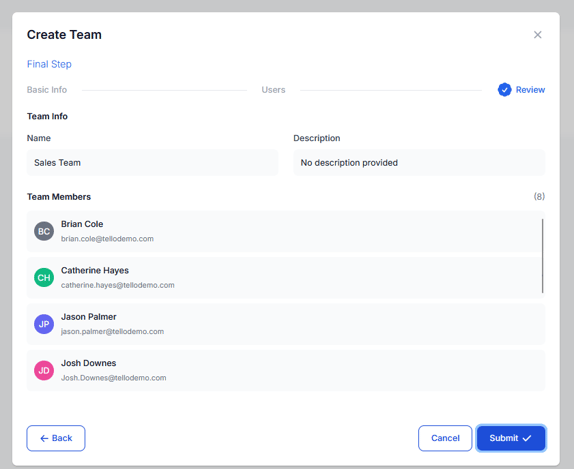
- Confirm that the name and user list are correct and select Submit.
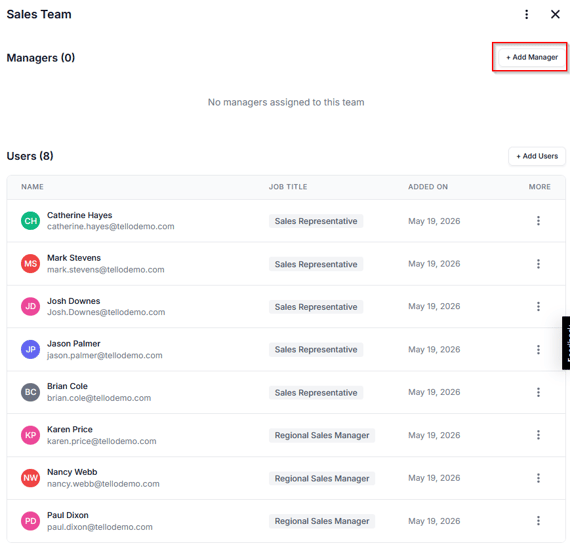
- Now that the team is created, you can add Managers. Managers will receive email notifications if any of the User permissions change within the Team. Select Add Manager.
- You can search through all employees in Tello to designate a manager. Review and select the desired notification permissions for the Manager and select Assign Manager
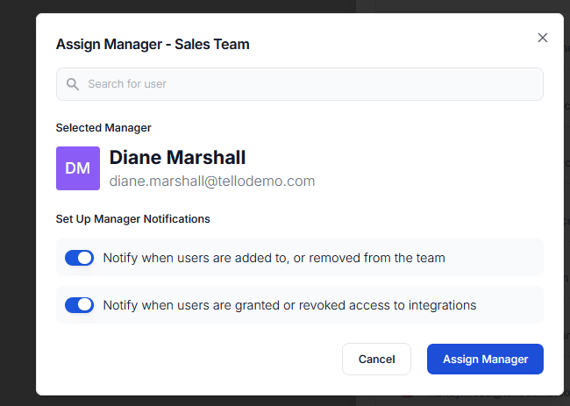
- You can add as many managers to the Team as you need.
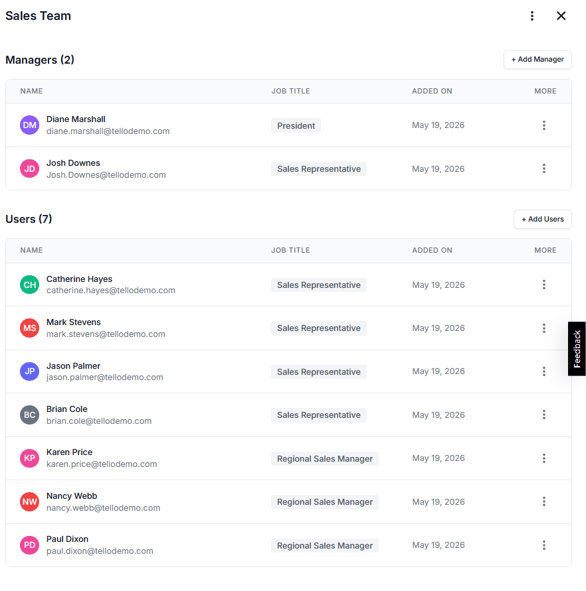
- Repeat this process for each Team in the organization's structure.
Verify Team assignments
After creating all Teams, confirm that every User has been assigned to a Team. Any User not assigned to a Team will not generate notifications when their access changes. Users can belong to multiple Teams. It may be advisable for your organization to create a Catch All team and route it to the IT Department to review.
How notifications work
Once Teams are configured, the assigned Team manager receives an email notification any time one of the following occurs for a User in their Team:
- The Administrator updates the User's permissions in Tello
- Access is provisioned or deprovisioned in a connected application/integration.
- A drift event is detected — a permission change that occurred outside of Tello IAM in a connected application
Notifications are sent automatically. No action is required from the Administrator to trigger them. The Team manager does not need access to the Tello IAM platform to receive notifications.
Confirmation
The Administrator is ready to proceed when all of the following are true:
- All Teams have been created and appear in the Teams list
- Each Team has an assigned manager
- All Users have been assigned to a Team
Next steps
This article is Part 7 of the Getting Started with Tello IAM series.
Next: Getting Started Part 8: Monitoring Access with Change History, Access Overview, & Reports
Previous: Getting Started Part 6: Configuring role templates
Getting Started series
- Platform Overview
- Connecting your IDP and HR integrations
- Verifying your user data
- Connecting additional integrations
- Planning your Role Template structure
- Configuring Role Templates
- Configuring Teams (current)
- Monitoring access with Change History, Access Overview, and Reports
 Seasoft Security Solutions LLC | TelloIAM