
Published Date: May 1, 2026 | Last Updated: May 13, 2026
About: This article covers creating and configuring role templates in Tello IAM using the structure defined in Part 5. The Administrator will build role templates against connected integrations, understand the override behavior that takes effect at assignment, and assign templates to Users
Before building
This article assumes the Administrator has completed the matrix exercise in Part 5. The layer 3 worksheet — HR roles to Tello Role Templates — is the build plan for this article. It defines which templates to create, and the per-application worksheets define exactly what each template must contain. Begin building only after that design is in place.
Navigate to Role Templates
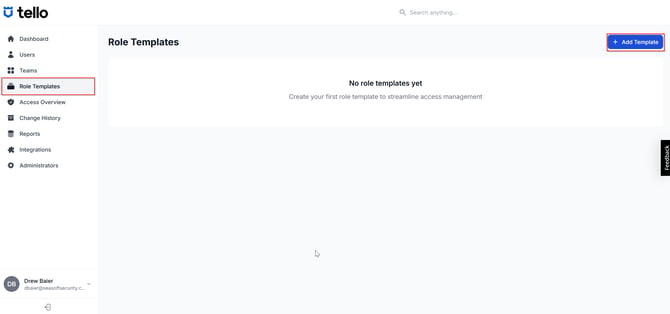
Navigate to Role Templates in the left navigation. The page lists all Role Templates currently configured in the platform. At this stage, the list is empty. Each template will be built from this page using + Add Template.
Create a Role Template
Role Templates can be built from scratch or created using an existing User's detected permissions as a starting point. Using detected permissions is recommended when a User already holds the access the template should represent — it reduces manual entry and ensures the template reflects real-world access.
Important: When Users are assigned to a Role Template, it fully overrides their previously detected permissions in every application the template covers. This is not a merge — it is a replacement. Any access a User held that is not included in the assigned template is removed at the time of assignment. Verify that each template is complete before assigning Users to it.
Option A: Create from a User's detected permissions
- Navigate to Users and select the User whose detected permissions best represent the template being built.
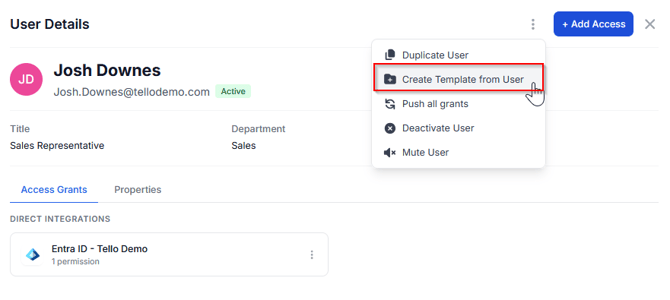
- Click the three dots and choose the option Create Template from User
- Enter a template name in the Template Name field. Use the name defined in the matrix. If using a role-to-role approach, the template name should match the HR role it represents — for example, a Sales Manager HR role maps to a Role Template named Sales Manager.
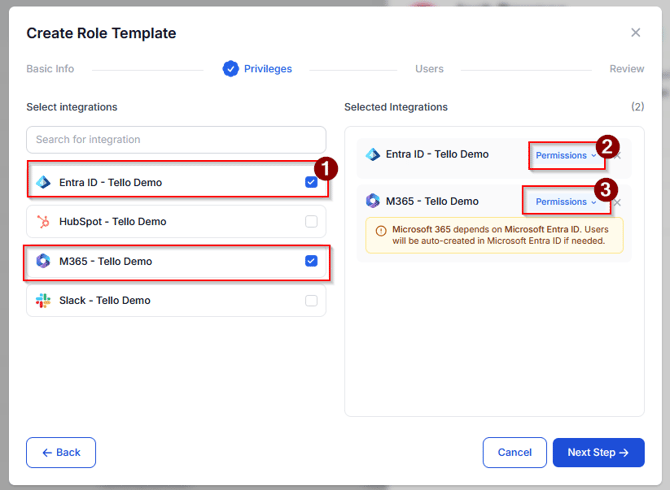
- Review the detected permissions pre-populated into the template. Add, remove, or adjust integrations and permission levels as needed to match the matrix design.
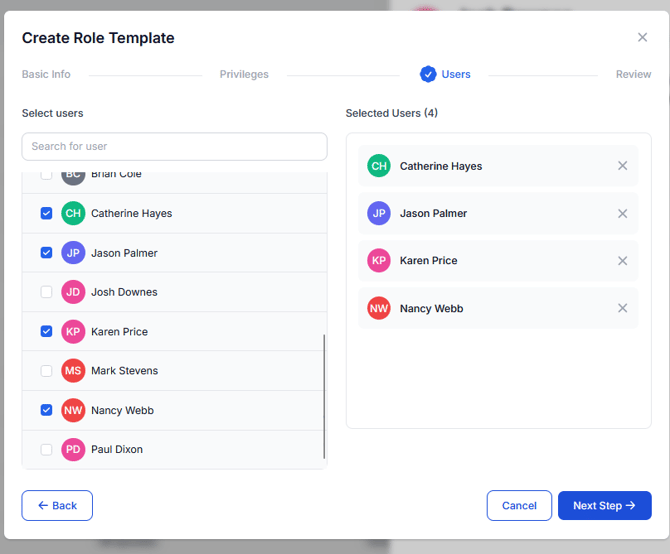
- Select the Users to assign to this Role Template.
- Review that all information is correct and select Submit. All assigned Users receive the template permissions in the associated systems immediately. The template appears in the Role Templates list.
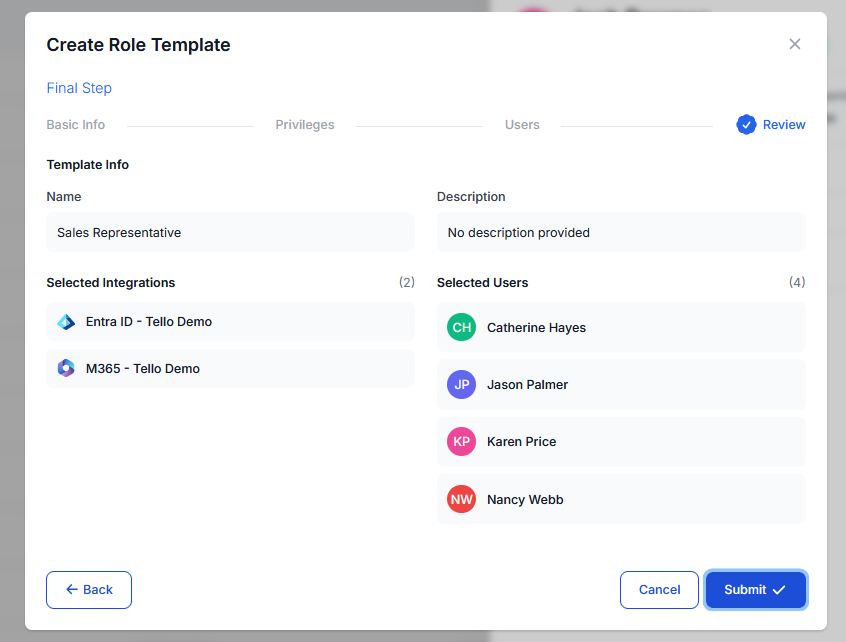
- The template now appears in the Role Templates list. You can modify permissions of the template or the users assigned to them at any time.
Option B: Create from scratch
- Navigate to Role Templates.
- Select + Add Template.
- Enter a template name in the Template Name field.
- Add the integrations and set the permission levels for each. Follow the same process as Option A to assign Users and submit.
- Select Submit. The template appears in the Role Templates list.
Repeat this process for every template in the matrix.
Confirmation
The Administrator is ready to proceed when all of the following are true:
- All templates from the matrix have been created and appear in the Role Templates list
- Each template has been assigned to the correct Users
- User records in the Users page display the assigned Role Templates in the Role Templates column
- The Access column on User records reflects the provisioned access defined by the assigned templates
Next steps
This article is Part 6 of the Getting Started with Tello IAM series.
Next: Getting Started Part 7: Configuring Teams
Previous: Getting Started Part 5: Planning your role template structure
Getting Started series
- Platform Overview
- Connecting your IDP and HR integrations
- Verifying your user data
- Connecting additional integrations
- Planning your Role Template structure
- Configuring Role Templates (current)
- Configuring Teams
- Monitoring access with Change History, Access Overview, and Reports
 Seasoft Security Solutions LLC | TelloIAM