
Published Date: May 11, 2026 | Last Updated: May 11, 2026
About: This guide introduces the Tello IAM platform to newly onboarded Administrators. It covers the platform interface, defines all core Tello-specific terminology, and explains how the key concepts connect. Administrators should read this guide before proceeding to any configuration documentation.
First Login
After receiving login credentials from Tello, the Administrator must complete 2 tasks before accessing the platform: setting up two-factor authentication and changing the temporary password.
Set up two-factor authentication
-
- Navigate to the Tello IAM login page and enter the provided credentials.
- When prompted, select an authentication method and follow the on-screen instructions to enroll a device.
- Confirm enrollment. The platform proceeds to the password change screen.
Change the temporary password
-
- Enter the temporary password in the Current password field.
- Enter a new password in the New password and Confirm password fields.
- Select Save. The platform loads the Dashboard.
Confirmation: The Administrator is directed to the Dashboard upon successful login. If the Dashboard does not appear, verify that both 2FA enrollment and password change were completed.
Core Concepts & Glossary
The following terms have specific meanings within Tello IAM. This glossary is the canonical reference — all other Tello documentation links back to these definitions.
Administrator: The IT professional who configures, manages, and maintains the Tello IAM platform. This is the person reading this documentation. Administrators are managed in the Administrators section and hold specific platform roles that define their level of access.
User: A person — typically an employee — who is managed within Tello IAM. Users are distinct from Administrators. The Administrator provisions, monitors, and manages Users through the platform.
Integration: A connected external application or directory service (for example, Microsoft Entra ID, Microsoft 365, HubSpot, or Slack). Integrations are the source of User data and the destination for provisioned access. Tello syncs with connected integrations on a configurable schedule.
Role Template: A configuration object that defines which integrations a User should have access to, and at what permission level. Role Templates are assigned to Users to provision their access. A single User can hold multiple Role Templates.
Team: A group of Users organized under a named manager. Teams are used to route automated notifications — when a User's access changes, Tello notifies the assigned Team manager by email.
Sync: The process by which Tello IAM pulls current User and access data from connected integrations. Syncs run on a schedule or can be triggered manually from the Integrations page.
Anomaly: An unexpected or potentially unauthorized access event detected by Tello IAM. Anomalies are surfaced on the Dashboard and require Administrator review.
Operation: A discrete access action executed by Tello IAM — for example, creating a User in an integration, granting access, or disabling an account. Operations are logged in Change History.
Status (User): Indicates the current state of a User's access. Common statuses include Synced, Inactive, and Issue.
Status (Integration): Indicates whether a connected integration is currently Active or inactive.
Administrator role: A permission label assigned to an Administrator that controls which parts of the platform they can access or modify. Common roles include platform.admin, integration.admin, access.admin, and platform.access.
How Tello IAM Works
Tello IAM centralizes identity and access management across the external applications an organization uses. The following flow describes how the platform's core concepts connect.
-
- Integrations are connected. The Administrator connects each external application — a directory service, CRM, communication tool, or other platform — as an integration. Tello begins syncing User and access data from each connected integration.
- Role Templates are configured. The Administrator creates Role Templates that define what access a given job function, department, or application group requires. A Role Template specifies which integrations are included and at what permission level.
- Role Templates are assigned to Users. The Administrator assigns 1 or more Role Templates to each User. Tello IAM provisions the User's access across all integrations specified by those templates.
- Access is monitored. Tello tracks all operations, surfaces anomalies, and logs every change. The Administrator uses the Dashboard, Access Overview, and Change History to maintain visibility. Reports can be exported at any time.
- Teams route notifications. When a User's access changes, Tello notifies the Team manager assigned to that User by email, keeping department leads informed without requiring them to access the platform directly.
Platform Overview
The Tello IAM interface is organized around a left-side navigation menu. Each item in the navigation corresponds to a distinct area of the platform. The sections below describe what each area contains and what the Administrator manages within it.
Dashboard
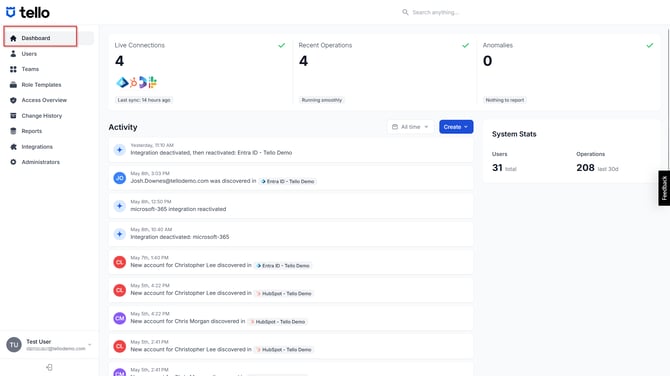
The Dashboard is the default landing page after login. It provides a real-time summary of the platform's operational state across 3 key metrics:
-
- Live Connections — the number of integrations currently active and syncing successfully.
- Failed Operations — the number of provisioning operations that did not complete successfully, along with a failure rate indicator.
- Anomalies — the number of unexpected or potentially unauthorized access events detected since the last review.
The Dashboard also displays a timestamped Activity feed showing recent platform events — new Users discovered, integrations activated or deactivated, and access changes — alongside System Stats showing the total number of Users and operations performed in the last 30 days.
The Dashboard is a read-only summary. Actions such as resolving anomalies, reviewing operations, or managing integrations are performed in their respective sections.
Users
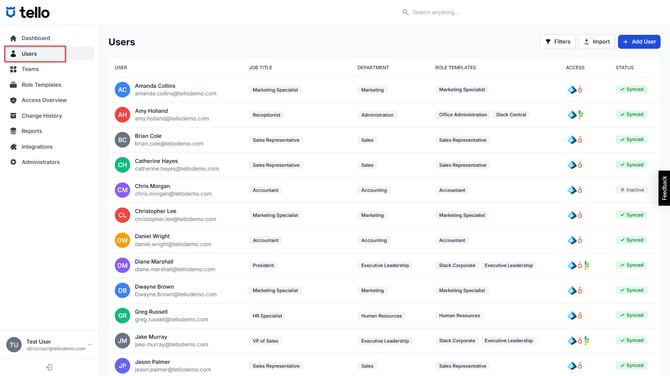
The Users page displays all individuals managed within Tello IAM. Each row in the list represents 1 User and surfaces the following information:
-
- User — the User's display name and email address.
- Job Title — the User's role as imported from the connected directory integration.
- Department — the organizational department the User belongs to.
- Role Templates — the Role Templates currently assigned to the User.
- Access — icons representing the integrations the User is currently provisioned in.
- Status — the User's current access state (for example, Synced, Inactive, or Issue).
The Administrator can add Users manually using + Add User, or import Users in bulk using Import. Filters allow the Administrator to narrow the list by department, status, or other attributes.
Selecting a User opens the User detail view, where the Administrator can review the User's full access profile, assign or remove Role Templates, and take manual provisioning actions.
For a full reference on managing Users, see the Managing Users guide.
Teams
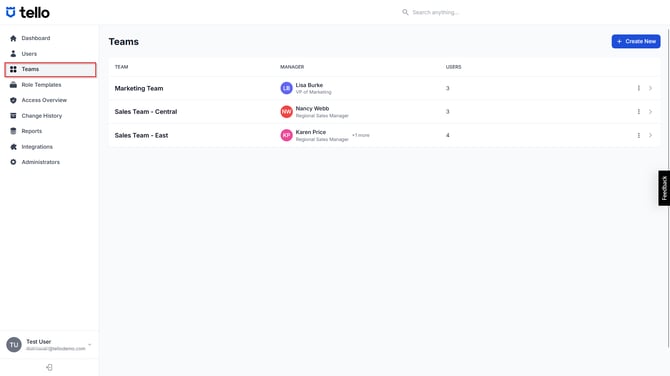
The Teams page displays all configured Teams. A Team is a named group of Users associated with a manager. Teams serve a notification purpose: when a User's access is changed by Tello IAM, the assigned Team manager receives an automated email alert.
Each Team entry shows the Team name, the assigned manager, and the number of Users in the Team. The Administrator creates and manages Teams using + Create New.
Teams are distinct from Role Templates. Teams do not control access — they control who is notified when access changes. Use Role Templates to define and assign access.
For a full reference on configuring Teams, see the Configuring Teams guide.
Role Templates
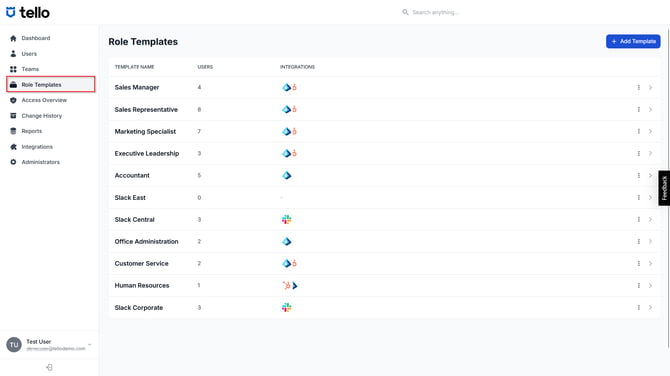
The Role Templates page lists all templates available in the platform. Each template defines a specific combination of integrations and access permissions. When the Administrator assigns a Role Template to a User, Tello IAM provisions that User's access in every integration the template includes.
Role Templates can be structured in a variety of ways:
-
- Job role–specific — a template built around a job function, such as Sales Representative or Accountant, that includes the integrations employees in that role require.
- Application-specific — a template scoped to a single integration, such as Slack Corporate or Slack East, used to grant access to that application independent of a job role.
- Permission-specific — a template that grants a defined level of access within an integration, such as an administrative or read-only permission tier.
Each template entry shows the template name, the number of Users assigned to it, and the integrations it includes. The Administrator creates templates using + Add Template.
For a full reference on configuring Role Templates, see the Configuring Role Templates guide.
Access Overview
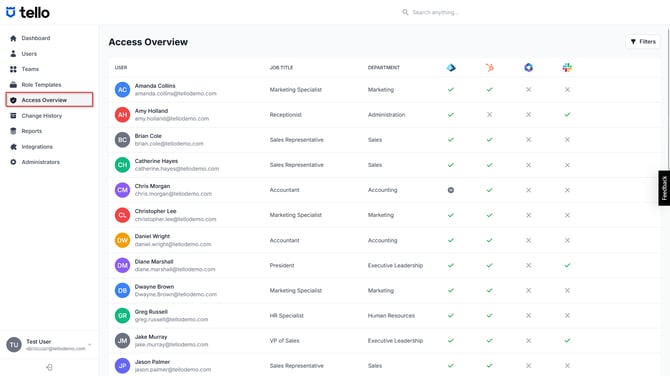
The Access Overview page provides a matrix view of all Users and their access across every connected integration. Each row represents 1 User; each column represents 1 integration. The intersecting cell indicates whether the User has active access in that integration.
Status indicators in the matrix reflect the current provisioning state. Warning indicators in a cell signal an issue with that User's access in the corresponding integration. The Administrator can use Filters to narrow the view by department, integration, or status.
Access Overview is a monitoring and review tool. Provisioning changes are made by editing a User's Role Templates in the Users section.
For a full reference on reviewing access, see the Access Overview guide.
Change History
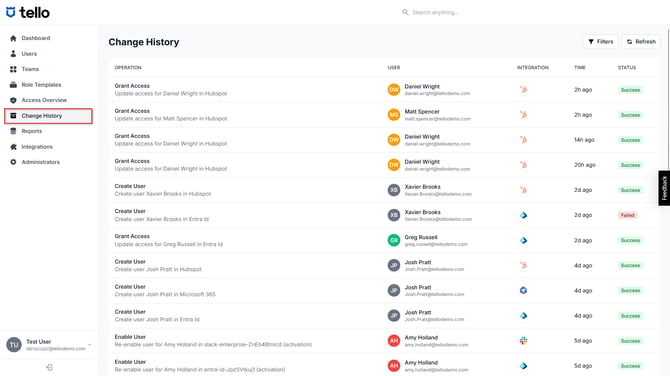
The Change History page is a timestamped log of every operation Tello IAM has executed. Each entry records the operation type, the User it affected, the integration it was performed in, the time it occurred, and whether it succeeded or failed.
Common operation types include:
-
- Create User — a new account was created for a User in an integration.
- Enable User — a previously deactivated User account was reactivated.
- Disable User — a User account was deactivated in an integration.
- Grant Access — access permissions were updated for a User in an integration.
The Administrator uses Change History to investigate failed operations, verify that provisioning actions completed as expected, and maintain an audit trail. Select Filters to search by User, integration, time range, or operation status. Select Refresh to load the latest entries.
For a full reference on reading and filtering operation logs, see the Change History guide.
Reports
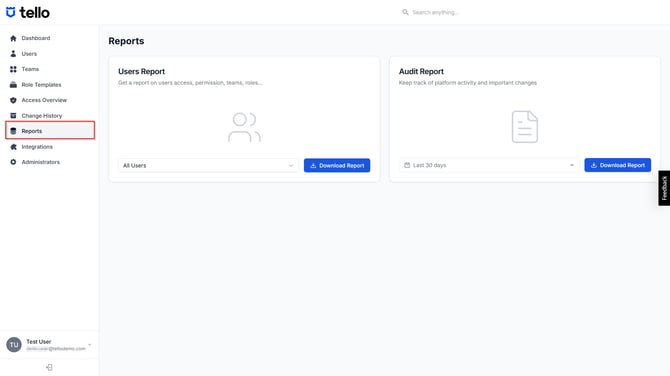
The Reports page provides 2 downloadable reports:
-
- Users Report — an exportable CSV containing User access data, including permissions, Teams, and Role Templates. The Administrator can filter the report to a specific User or export data for all Users.
- Audit Report — an exportable CSV of platform activity and significant access changes over a selected time range. The default range is the last 30 days.
Select Download Report under the relevant report type to export the file.
For a full reference on generating and interpreting reports, see the Reports guide.
Integrations
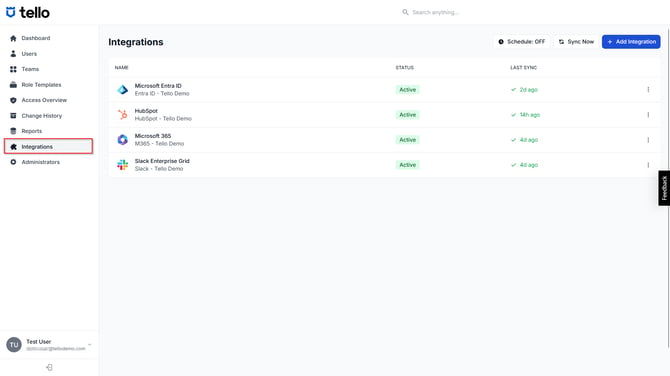
The Integrations page lists all applications and directory services connected to Tello IAM. Each integration entry shows the application name, its current status (Active or inactive), and the time of the most recent successful sync.
The Administrator adds a new integration using + Add Integration. Once connected, Tello begins syncing User and access data from the integration on the configured schedule. The sync schedule can be enabled or disabled using the Schedule toggle. A manual sync can be triggered at any time using Sync Now.
For a full reference on connecting and configuring integrations, see the Configuring Integrations guide.
Administrators
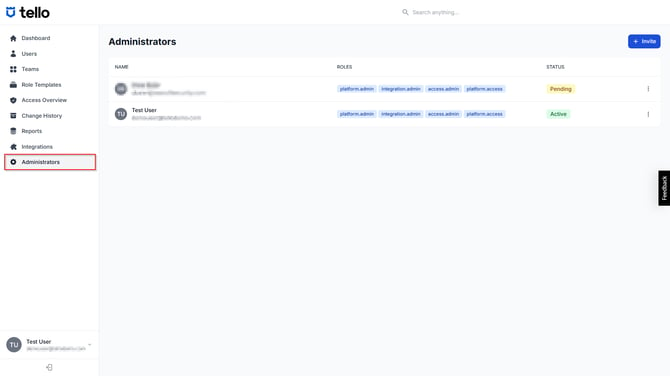
The Administrators page lists all individuals who have been granted access to the Tello IAM platform as Administrators. It is distinct from the Users page, which lists individuals managed by the platform.
Each entry shows the Administrator's name, email address, assigned platform roles, and invitation status. Tello IAM supports 4 Administrator role labels:
-
- platform.admin — full administrative access to all platform settings and configuration.
- integration.admin — access to connect, configure, and manage integrations.
- access.admin — access to manage User access and Role Template assignments.
- platform.access — general platform access without full administrative privileges.
The Administrator invites additional Administrators using + Invite. Invitees appear with a Pending status until they accept the invitation and complete their own first-login setup.
For a full reference on managing Administrators and roles, see the Managing Administrators guide.
Settings
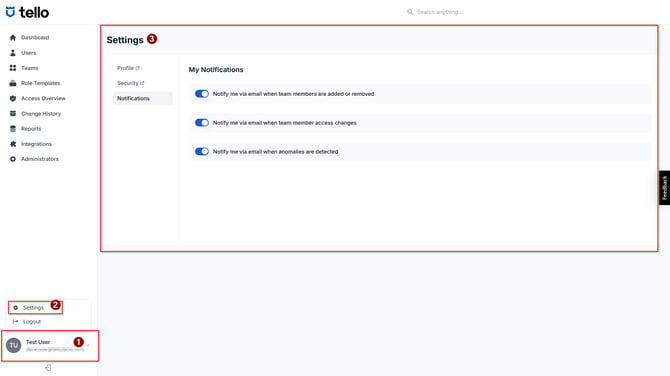
Settings is accessible from the bottom of the left navigation by selecting the account name. It contains 3 sub-sections:
-
- Profile — manages the Administrator's display name and account details.
- Security — manages authentication settings, including two-factor authentication configuration.
- Notifications — controls which email alerts the Administrator receives. Available notification types include alerts when team members are added or removed, when team member access changes, and when anomalies are detected.
For a full reference on account and notification settings, see the Settings guide.
Managing Your Account
After first login, the Administrator can update account details, adjust security settings, and configure notifications at any time from Settings.
Access Settings by selecting the account name at the bottom of the left navigation and choosing Settings from the menu. The Security sub-section allows the Administrator to update the account password and modify two-factor authentication settings. The Notifications sub-section allows the Administrator to enable or disable each email alert type using the toggle controls.
Getting Help
If the Administrator encounters an issue or requires assistance, the following resources are available:
-
- In-platform feedback — select the Feedback tab on the right edge of any page to submit a message directly from the platform.
- Documentation — the full Tello IAM documentation library covers configuration, integrations, Role Templates, User management, and reporting.
- Support — contact the Tello support team for account issues, access problems, or technical questions. Support can be reached directly at Support@SeasoftSecurity.com
Next steps
This article is Part 1 of the Getting Started with Tello IAM series.
Next: Getting Started Part 2 - Connect your IDP & HR Integrations
Getting Started series
- Platform Overview (current)
- Connecting your IDP and HR integrations
- Verifying your user data
- Connecting additional integrations
- Planning your Role Template structure
- Configuring Role Templates
- Configuring Teams
- Monitoring access with Change History, Access Overview, and Reports
 Seasoft Security Solutions LLC | TelloIAM